
Using Daywright
A little help getting started.
Capture a to-do, choose a time that fits, and keep track of where you leave off. This guide covers the Apple edition for iPhone and iPad. Android development is underway; its setup and feature guide will follow. Compare platform availability.
Set up your day
In Settings → Included calendars, choose the device calendars Daywright can read, or connect Google Calendar directly. Include each calendar through one source to avoid showing it twice.
Under Planning, set Day starts, Day ends, and Time before commitments. These define the hours and buffer used to find openings. They do not move calendar events.
Calendar access is optional. Without it, Free now uses the time you state and your Daywright placements. Read any coverage or refresh notice before relying on an opening.
Use Daywright on iPad
Daywright supports iPhone with iOS 17 or later and iPad with iPadOS 17 or later. On iPad, rotate between portrait and landscape or resize the app window. Home shows calendar and task cards side by side when there is enough space, and uses a single column in narrower windows or with accessibility text sizes.
Add and edit to-dos with the on-screen keyboard or a connected keyboard. Use the editor’s Add, Save, and Cancel controls. Rotating while you edit keeps the draft open. Daywright uses one app window at a time.
Your task list stays local unless you enable optional iCloud sync on each device. With sync enabled, tasks, notes, progress, and private placements can move between your iPhone and iPad. Choose included calendars and set up any direct Google connection on each device.
Add a to-do
Tap Add to-do, enter a title and a rough Estimated time, then tap Add. You can leave the task flexible until you know when you want to do it.
Open More details for Schedule, Deadline or target, Availability, Priority, Notes, and Place. Firm deadline is a due date; Aim for is a target. Availability limits when the task can be suggested.
My important task raises its priority when it fits. You can have one important task at a time; firm deadlines take precedence.
To capture from another app, share text or a link, choose Daywright, and tap Save draft. Open Daywright to review it before tapping Add. Cancel keeps the shared draft for later. Links saved in Notes stay as text; Daywright does not fetch their pages.
Find something for the time you have
Open Free now and choose 5, 10, 15, 30, 45, or 60 minutes. Review Tasks that fit and tap Use this time to schedule your choice privately in Daywright.
Not now skips a suggestion for this session. Show other tasks offers more choices. Leave this time free closes the view without scheduling anything.
If a current commitment finishes early, Current commitments ended early makes its remaining time available for this search. Future events remain protected, and the source calendar stays unchanged.
Plan ahead and repeat
In More details → Schedule, select Choose a time and set the start. In Calendar, switch between Month and Week, select a date, and review that day’s events, tasks, and openings.
A scheduled task can repeat daily, weekly, or monthly. Each occurrence has its own completion status. Edit this occurrence changes one date; Edit this and later occurrences changes the schedule from that point onward.
After completion works differently: choose an interval, finish the task, and it returns to your flexible list when due and you open Daywright. Missed returns do not pile up as duplicate tasks.
Choose a task Reminder and allow Scheduled task reminders in Settings for an alert before its scheduled start. A reminder time that has already passed does not send a late alert. Open Daywright regularly to keep repeating reminders scheduled.
Keep unfinished work moving
Open a task and choose Mark done when it is finished. A scheduled time ending, or a Live Activity reaching zero, does not complete it.
Made progress saves a note and an updated estimate of the time remaining. The task returns to your flexible list. If it was already waiting, it stays waiting.
Waiting on something records the reason and an optional follow-up date. Waiting tasks stay out of suggestions until you choose Ready again. Follow-ups appear inside Daywright; they do not send notifications or contact anyone.
Return to flexible list removes a task’s private placement so you can find another time. Its details stay with it.
Review the bigger list
Home gives you a view of the near term and work that is ready to do. Open To-do for the broader list. Search titles and notes, use the status filters, or sort by due date, shortest first, title, or newest first.
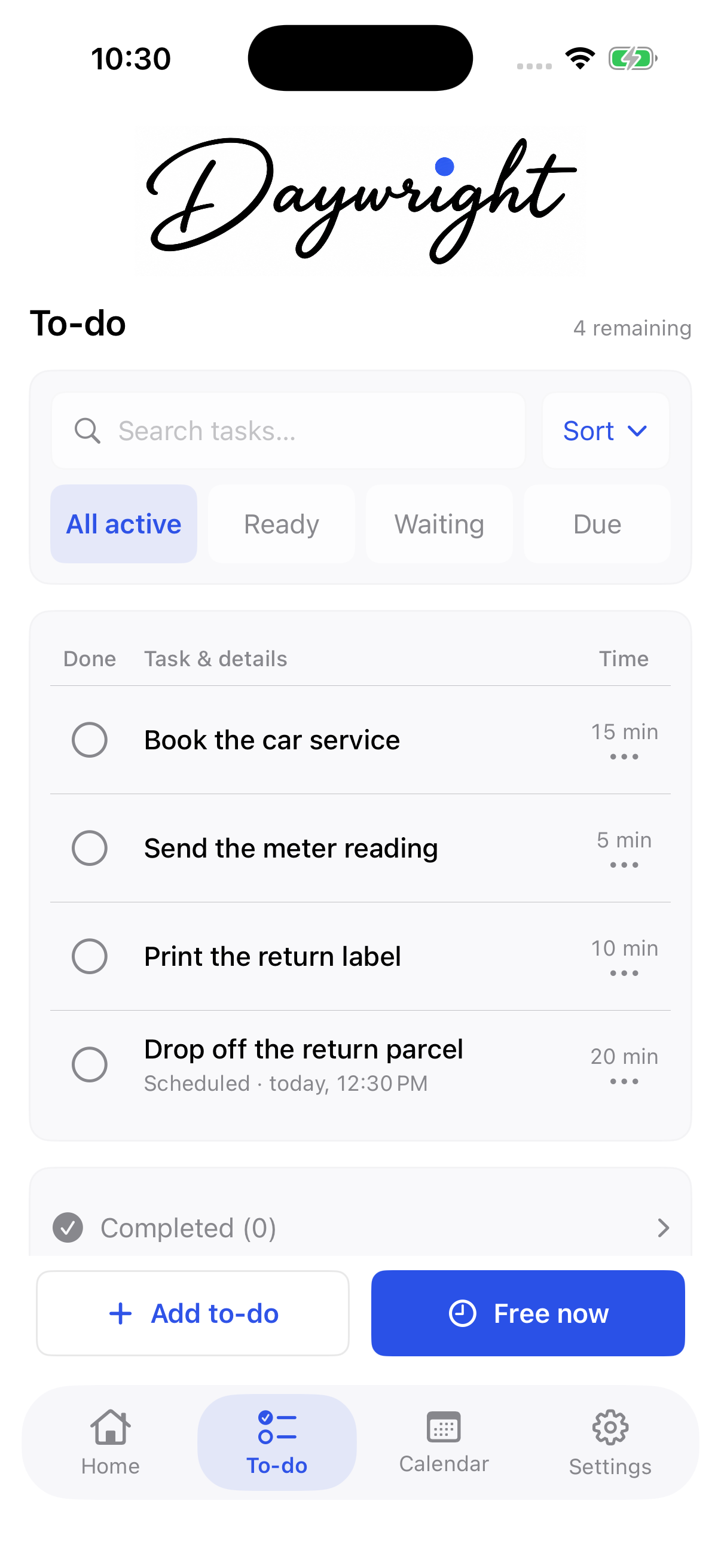
Expand Completed to revisit finished tasks. Open one and choose Mark incomplete if it needs more work.
Use Siri and Shortcuts
Find Daywright’s Add a to-do, Find something to do, and Show today actions in Apple Shortcuts, or ask Siri to use them. Unlock your device when requested.
Add a to-do asks for a title and estimated minutes. It saves immediately by default. Turn on Settings → Siri & Shortcuts → Review before adding to open a draft and save only after tapping Add.
Find something to do uses your available minutes to return choices without scheduling them. Show today returns tasks and, by default, events from your included calendars.
Turn off Include calendar events to leave events out of Show today. Calendars still inform suggestions. Returned information is available to Siri, Shortcuts, and any later actions you connect. Consider what a shortcut might display, speak, or pass on.
Set up widgets and Live Activities
Add a small or medium Home Screen widget, or Daywright’s rectangular Lock Screen widget. Tap a task to open it. Settings → Widgets & Live Activities explains setup and refresh behavior.
Show widget task titles applies to both Home Screen and Lock Screen widgets. Turn it off to show Private task instead. Times and estimates remain visible. Live Activity titles have a separate setting and are hidden by default.
During a task’s scheduled time, Show Live Activity displays the remaining time. Stop Live Activity ends the display and leaves the task scheduled. The system manages widget refreshes, so a widget may lag behind the app.
Add quick controls
On iOS 18 or iPadOS 18 or later, add Add to-do or Free now to Control Center. Open Control Center, touch and hold the background, tap Add a Control, and search for Daywright. While editing, tap a Free now control to choose its duration.
On an iPhone with an Action button, open iPhone Settings → Action Button → Controls and choose a Daywright control. Press and hold the Action button to open it.
Unlock your device to use a control. Add to-do opens a draft; Free now opens suggestions. Nothing is added or scheduled until you choose an action in Daywright. Finish or cancel an existing draft first if one is open. Siri’s Review before adding setting does not change these controls.
Choose your appearance and manage access
Settings → Appearance offers System, Light, or Dark, with Daywright Blue, Sage, Plum, and Amber accents.
Settings → Subscription shows access and purchase options. Planning and task changes require Daywright Plus. Without access, saved information remains readable on your device. Use the options shown in the app to subscribe or restore a purchase.
Tasks remain available locally. Optional iCloud sync carries edits and deletions between devices; it is not a backup. Device backup settings may include task data; read the privacy policy for storage and calendar details.
Set up optional iCloud sync
Open Settings → Your Apple devices → iCloud sync, turn on Sync with iCloud, and confirm. Enable it in the same app on each device using the same Apple Account. Sync is off until you choose it; you can keep using local storage.
Daywright syncs tasks and their notes, progress, waiting details, schedules, and saved places, plus your planning hours and buffer. Included calendars, Google sign-in, calendar events, and device permissions stay local; configure those separately on each device.
Sync runs when the app opens and after saved changes while it is open. Tap Sync now to request an update. Offline changes wait locally. Check Waiting to sync and Last synced before relying on another device’s copy.
If the app shows Choose which version to keep, review the saved alternatives. A changed iCloud account pauses sync; follow the status message. Turning sync off pauses transfers, but does not erase data already in iCloud.
Use the Apple Watch companion
The Watch companion requires watchOS 10 or later and a paired iPhone. Open Daywright on your paired iPhone to refresh it. View today’s to-dos and the next scheduled task.
On Watch, enter a title in Capture and choose Add to inbox. On your phone, open Watch drafts, choose an estimate, then tap Add to-do. For example, capture “Book car service” now and choose 15 minutes when you review it.
Tap the checkmark to complete a to-do, or use Undo completion when offered. Actions remain Pending until the phone saves them. If the list is stale or shows Waiting for your phone, open the phone app to refresh it. A Watch tap is not confirmation that the phone has saved a change.
Add Quick capture or Next to a compatible watch face. Watch task titles may be visible there; the phone widget privacy switches do not hide Watch content. Nearby results on Watch come from the phone’s recent location, not a separate Watch location search.
Find to-dos nearby
In a to-do, open More details → Place. Enter an address or business and choose Search Apple Maps, then select a result. You can also enter coordinates manually. The place is part of the draft until you save the to-do.
Open Nearby to-dos from To-do or Settings. Allow location when asked, then use Refresh location if needed. The list shows saved to-dos within 5 kilometers. For example, save the parcel shop with “Return parcel” so it appears when you are nearby.
For an arrival alert, choose an Arrival radius, turn on Arrival reminder for that to-do, and use Allow arrival reminders. Location and notification permissions are controlled separately on each device. Alerts use the generic text “Nearby to-do available.”
Arrival alerts are delivered by the operating system and may be delayed or unavailable. Follow any limit or permission notice in the app. Saved places can sync with the to-do; your current location does not. Apple Maps receives a search only when you submit one.
These additions describe Daywright 0.6.0 (44). Real-device sync, paired-Watch delivery, and arrival reminders remain under beta validation.
Still need a hand? Get in touch.